Apple Pencil Pro pairs through the magnetic connector on a compatible iPad. Apple Pencil (USB-C) needs a cable, including after the iPad restarts. Check the Pencil model and the compatibility table before trying to pair it, because a magnet that holds the Pencil does not establish that the two are compatible.
The steps here follow Apple's iPadOS 27 user guide and its pairing help page, read on November 5, 2026. They cover the M2, M3 and M4 iPad Air, the M4 and M5 iPad Pro, the A17 Pro and A20 Pro iPad mini, and the iPad (A16), which also takes the original Pencil through an adapter. Once the Pencil has some charge, pairing takes a few seconds.
Have these ready
- Update the iPad to the latest iPadOS, the first item on Apple's checklist.
- Turn on Bluetooth in "Settings" > "Bluetooth".
- For Apple Pencil (USB-C), have the USB-C charge cable that came with the iPad.
- For the original Apple Pencil on an iPad (A16), have Apple's USB-C to Apple Pencil Adapter and the same cable.
- Give a flat Pencil some charge, since Apple warns it may need charging before you can use it.
Which Pencil works with your iPad
The iPad models listed below do not support Apple Pencil (2nd generation). A Pencil from an older iPad can therefore fit against a newer tablet without pairing. Check Apple’s model-specific compatibility information before replacing either product.
| iPad | Apple Pencil Pro | Apple Pencil (USB-C) | Apple Pencil (1st generation) |
|---|---|---|---|
| iPad Pro 13 and 11 (M4, M5) | Yes | Yes | No |
| iPad Air 11 and 13 (M2, M3, M4) | Yes | Yes | No |
| iPad mini (A17 Pro, A20 Pro) | Yes | Yes | No |
| iPad (A16) | No | Yes | With Apple's adapter |
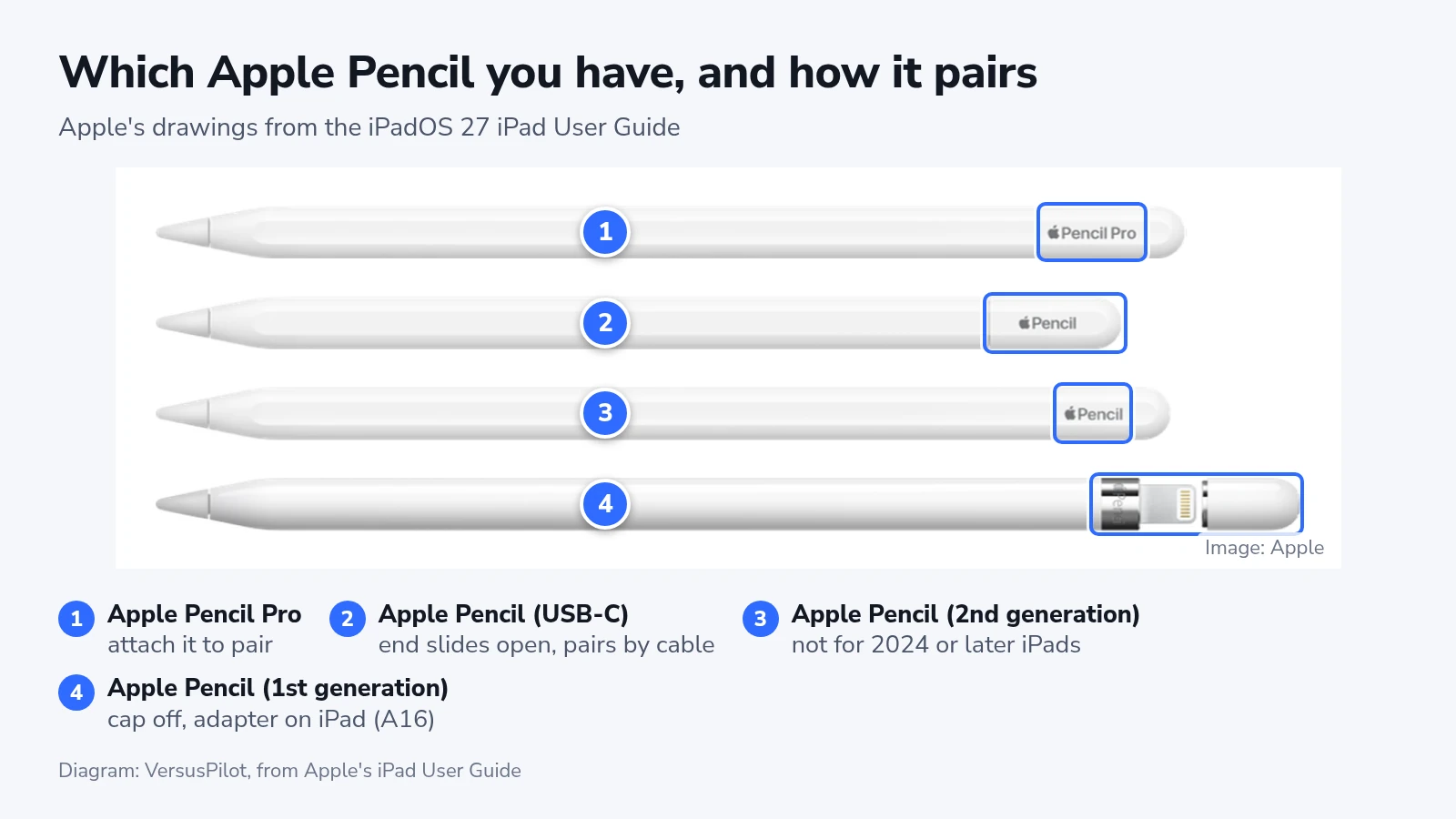
The end of the USB-C model slides open to show its port, and the Pro has "Pencil Pro" printed on its flat side, as Apple's drawings show.
Attach Apple Pencil Pro to pair it
- Check that Bluetooth is on in "Settings" > "Bluetooth".
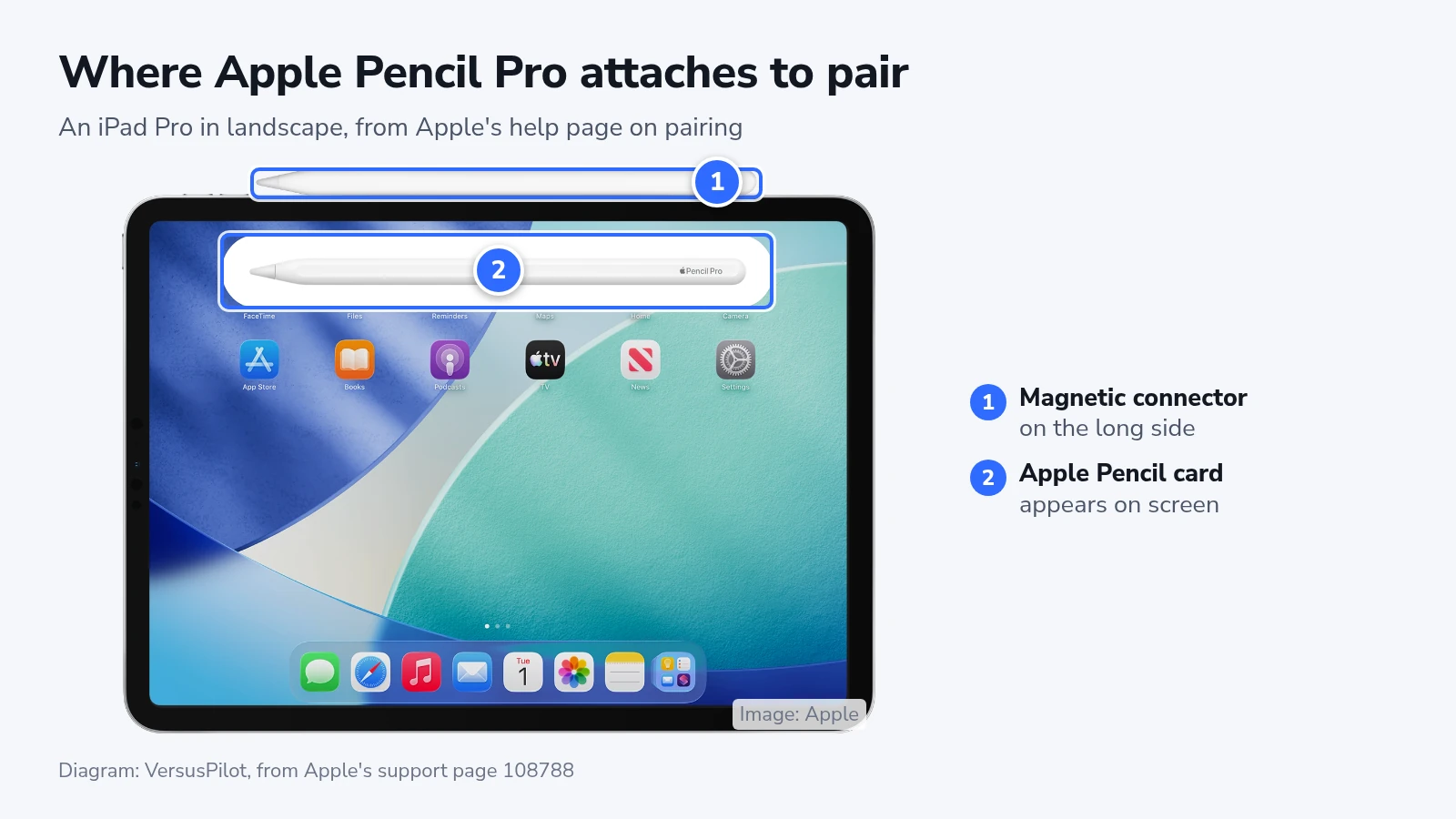
- Attach the Pencil to the magnetic connector on the long side of the iPad.
- If a "Pair" button appears after a few seconds, tap it.
A card with a picture of the Pencil comes up on screen. The Pencil charges for as long as it stays on the magnet, so the side of the iPad is also the best place to keep it.
Apple Pencil (USB-C) pairs by cable
- Slide open the end of the Pencil to show its USB-C port.
- Connect the Pencil to the iPad with the USB-C charge cable that came with the iPad.
- Tap "Tap to Connect" on the iPad.
- Unplug the cable once the Pencil is paired.
It charges while it's plugged into the iPad. Snapping it to the side of the iPad only stores it there, because Apple says this model pairs and charges over USB-C.
The pairing lasts until you restart the iPad, turn off Bluetooth or pair the Pencil with another iPad, according to Apple's guide. After any of the three, plug it in and tap "Tap to Connect" again.
Apple Pencil (USB-C) has no pressure sensitivity. Pencil Pro supports it on compatible iPads, which is useful for drawing, but it does not change the cable steps for the USB-C model.
The original Apple Pencil on an iPad (A16)
The iPad (A16) also takes Apple Pencil (USB-C), with the cable steps in the previous section. The original Pencil needs Apple's USB-C to Apple Pencil Adapter on this iPad.
- Pull the cap off the Pencil.
- Plug the Pencil into the adapter.
- Connect the adapter to the iPad with the USB-C charge cable that came with the iPad.
- Tap "Pair" when the button appears.
- Unplug the Pencil.
This pairing ends the same three ways as the USB-C one, so keep the adapter with the Pencil.
A Pencil that won't pair
For a USB-C or original Pencil that stopped connecting after an iPad restart, try the cable-pairing steps first. If it still fails, continue with the checks below.
A USB-C Pencil attaches magnetically for storage but pairs by cable. A 2nd generation Pencil also will not pair with the iPads in the table. Compare the model markings with Apple’s drawings before troubleshooting further.
For a Pencil that has never paired, work through Apple's sequence:
- Connect the Pencil and keep it connected. Center a Pro on the magnetic connector, and plug in a USB-C or original Pencil.
- Restart the iPad, then try to pair again.
- Open "Settings" > "Bluetooth" and check that Bluetooth is on.
- Under "My Devices", tap the info button next to the Pencil, then tap "Forget This Device".
- Connect the Pencil again and wait a few seconds for "Pair" ("Tap to Connect" on the USB-C model).
- If no button appears, leave the Pencil connected for a minute to charge, then connect it again.
- If a Pencil Pro still won't pair, take the iPad out of its case or cover and try again.
If the pairing button still never appears, Apple’s next step is service.
A Logitech Crayon has nothing to pair
If your iPad came with a Logitech Crayon, you won't find a pairing screen. Logitech's help page says to switch the Crayon on and start writing. It also says to forget any Apple Pencil in "Settings" > "Bluetooth" first, because the iPad won't take input from both at once.
Checking that it's paired
"Settings" > "Apple Pencil" and the Batteries widget show the Pencil's charge. For a firmer check, open "Settings" > "General" > "About" > "Apple Pencil". Apple lists the serial number there once the Pencil is paired.
Draw in Mac apps with Sidecar
A paired Pencil also works in Mac apps through Sidecar, which turns the iPad into a second display for a MacBook Air or another Mac that supports it. Apple's Sidecar page says the Pencil can then point, click, draw and edit photos in place of the trackpad. Both devices need the same Apple Account with two-factor authentication. For a wireless session, keep them within 30 feet of each other with Bluetooth, Wi-Fi and Handoff turned on. To start, hold the pointer over the full-screen button of a Mac window and choose the option to move it to the iPad.