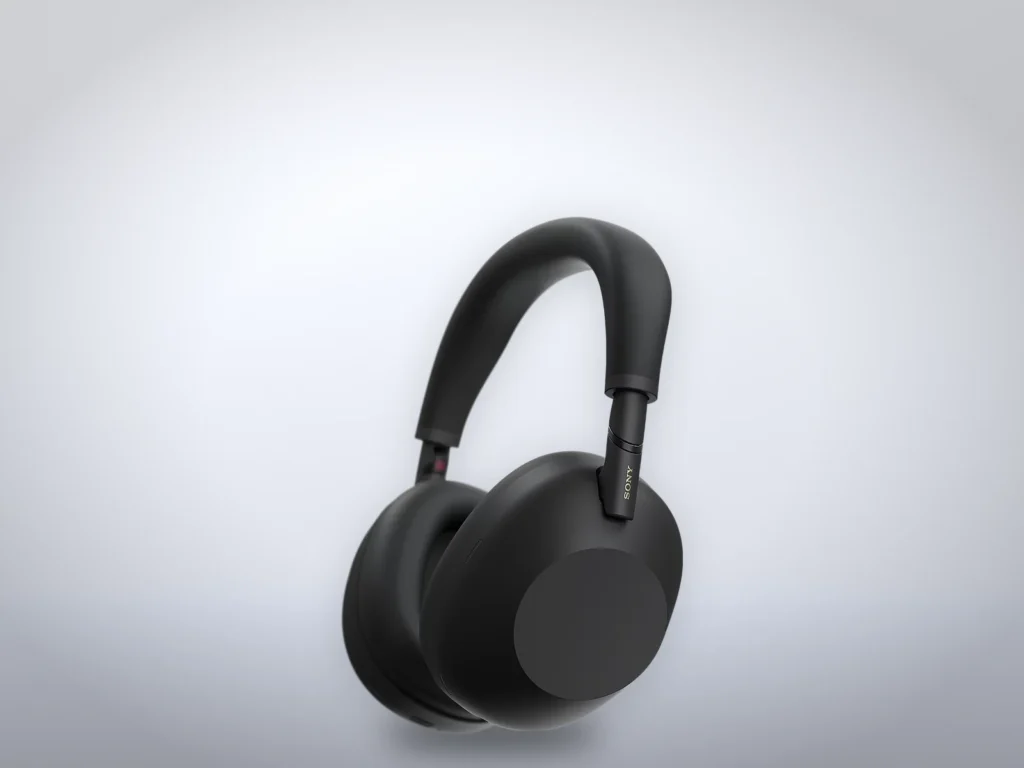
To connect Sony headphones to two devices at once, pair both and let Sony’s multipoint feature keep both connections open. A call to your phone then reaches you while music plays from the laptop, with no trip into Bluetooth settings. Setup takes about ten minutes on the WH-1000XM6, the WF-1000XM6 earbuds and four older Sony models.
The steps come from Sony’s help guides and the “Sony | Sound Connect” app as of October 2026. Sony keeps a support article for the snag that comes afterward: the second device plays and the headphones stay silent.
Before you start
- Sound Connect on your phone, the app that replaced Headphones Connect in October 2024. Only one of the two devices needs it, so the laptop needs nothing but Bluetooth.
- Both devices within about 3 feet of the headphones, the distance Sony asks for while pairing.
- Headphones or earbuds with some charge left.
Which Sony models need the app switch
Sony’s over-ear 1000X models hold a second device only after you turn on a switch in Sound Connect. Its earbud guides skip that step. The way into pairing mode differs too.
| Model | Switch in Sound Connect | Pairing mode for the second device |
|---|---|---|
| WH-1000XM6 | Turn it on | Hold the power button about 5 seconds |
| WH-1000XM5 | Turn it on | Hold the power button about 5 seconds |
| WH-1000XM4 | Turn it on (LDAC turns off) | Hold the power button about 7 seconds |
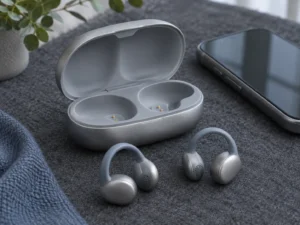
| WF-1000XM6 | None in Sony’s guide | Earbuds in the case, lid open, hold the button on the back of the case about 5 seconds |
| WF-1000XM5 | Only if a device won’t connect | As on the WF-1000XM6 |
| WF-C710N | Only if a device won’t connect | As on the WF-1000XM6 |
Set up a WH-1000XM6, XM5 or XM4
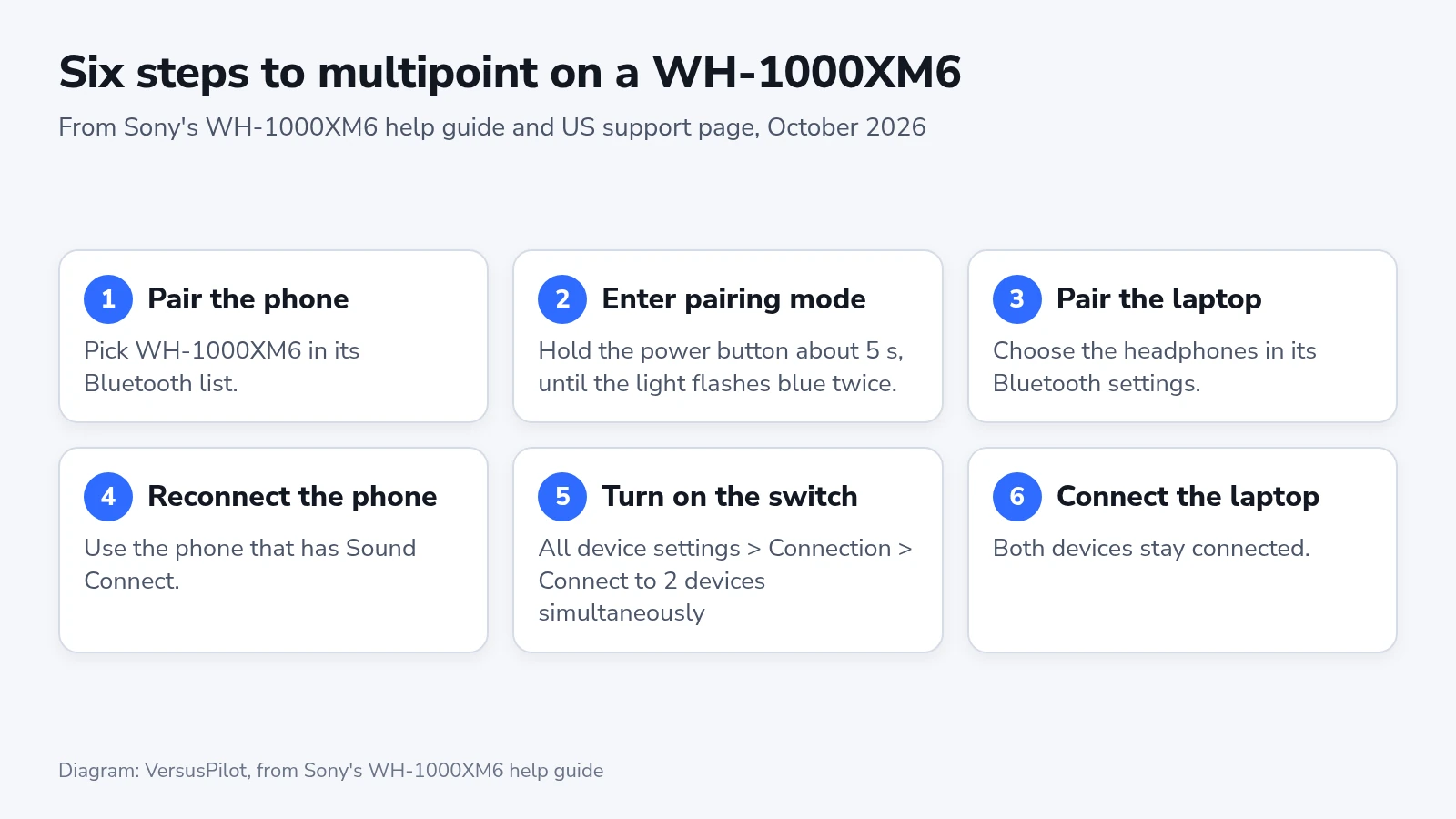
- Pair the headphones with your phone if you haven’t yet. New headphones go into pairing mode the first time you turn them on, so pick the model name, such as “WH-1000XM6”, in the phone’s Bluetooth list (“Settings” > “Bluetooth” on an iPhone).
- Put the headphones into pairing mode for the laptop. Hold the power button for about 5 seconds, until the light next to it flashes blue twice in a row and a voice says “Pairing”. On the XM6 the button sits on the left ear cup. The XM4 needs about 7 seconds and says “Bluetooth pairing”.
- On the laptop, choose the headphones in the Bluetooth settings. On Windows 11 that is “Start” > “Settings” > “Bluetooth & devices” > “Add device” > “Bluetooth”. A tone in the headphones confirms the connection.
- Reconnect the phone that has Sound Connect, from its Bluetooth list.
- In Sound Connect, open “All device settings” > “Connection” and turn on “Connect to 2 devices simultaneously”.
- Connect the laptop again from its Bluetooth settings. Both devices now stay connected.
On the WH-1000XM4, the switch in step 5 also turns off LDAC, Sony’s high-resolution codec, and the headphones fall back to AAC or SBC. Sony’s guide describes AAC as the codec iPhones use, so an iPhone owner gives up nothing. We’d turn multipoint on unless you play hi-res files from an Android phone over LDAC. Sony’s XM5 and XM6 guides list no such trade.
Set up the WF-1000XM6, WF-1000XM5 or WF-C710N
Sony’s guides for the WF-1000XM6 and the WF-C710N list no app step. You pair both devices and connect each one.
- Pair the earbuds with your phone if you haven’t yet. New earbuds go into pairing mode when you take both out of the case.
- Put both earbuds back in the case and leave the lid open.
- Hold the button on the back of the case for about 5 seconds, until the case light keeps flashing blue twice in a row.
- Choose the earbuds in the laptop’s Bluetooth settings.
- Reconnect the phone from its Bluetooth list. Both devices now stay connected.
Sound Connect can also put the earbuds into pairing mode for a second device, which saves the trip to the case button. If a WF-1000XM5 or WF-C710N still won’t hold two devices, check that “Connect to 2 devices simultaneously” is on in Sound Connect.
Which device you hear
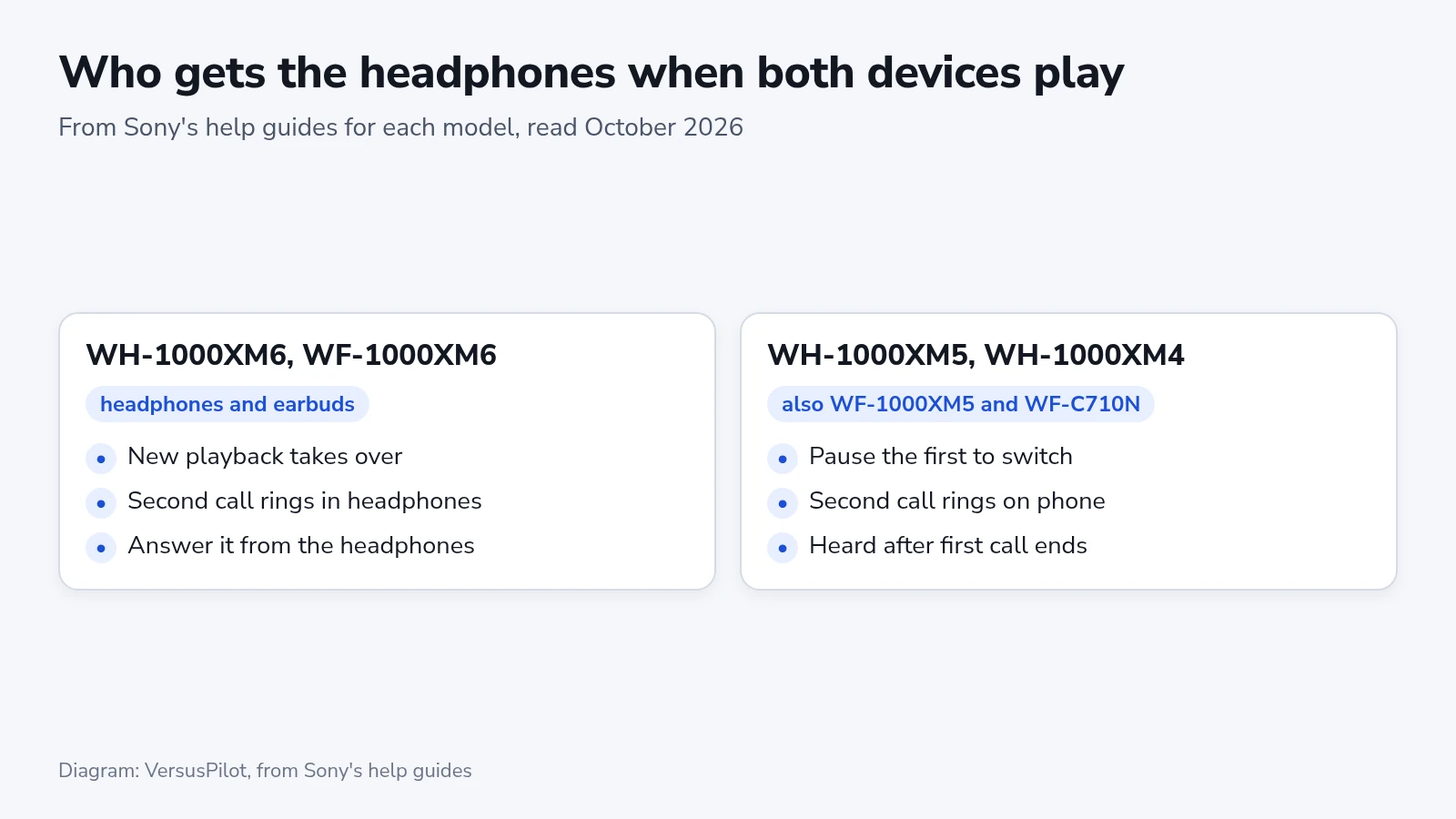
On the WH-1000XM6 and WF-1000XM6, pressing play on the second device takes the headphones over. On the WH-1000XM5, the XM4, the WF-1000XM5 and the WF-C710N, the first device keeps playing in your ears until you pause it. Only then does the second one come through.
With the XM6 models, a call to the second phone rings over the call you are on, and you can answer or reject it from the headphones. You still end the first call on its own phone. The older models ring the second call on the phone itself and pass the ring to your ears once the first call ends.
For a desk, the XM6 behavior is the easier one to live with, because the laptop takes over without a reach for the phone. The same rule lets a notification sound on the phone grab the headphones at the wrong moment. Sony’s fix is to turn off the phone’s notification and operation sounds or lower its volume. The WF-1000XM6 also has a Sound Connect setting that keeps music on the device you used before.
Every model here holds two connections at a time. Connect a third device and the headphones keep whichever of the two played last, then drop the other.
If the second device stays silent
When the laptop plays and you hear nothing, Sony’s support article gives three steps in this order:
- Check that “Connect to 2 devices simultaneously” is on in Sound Connect.
- Stop playback on the first device.
- Close the app that was playing on the first device.
Step 3 is the one to try when pausing did nothing. Sony says some devices keep sending a silent stream after playback stops, and that stream holds the headphones on the first device.
When the second device won’t connect at all, check which entry you picked. Sony’s US article says to choose the plain model name, such as “WH-1000XM4”, and not an entry that starts with “LE_”. The WH-1000XM6 remembers eight devices, and a ninth pairing overwrites the one connected longest ago. On the WF-1000XM5, switching Sound Connect to “LE Audio Priority” turns multipoint off, and a voice prompt says so.
An initialization restores the factory settings and deletes every pairing, so we’d leave it for last. Both devices would then need pairing again from the first step.
Check that it works
Play music on the phone, then start a video on the laptop. On an XM6 model the laptop takes over. On the older models, pause the phone and press play on the laptop. Then call your phone from another line while the laptop plays, and the ring should come through the headphones.
Repeat the setup only after an initialization, which clears every pairing, or when a ninth device has pushed one of yours out.